
You open a document, check your email, return to a browser tab, and wait. The spinning cursor appears. The tab reloads. The laptop’s fan wakes up as though you asked it to solve a mathematical mystery rather than display an ordinary webpage.
If your PC has 8 GB of memory, you probably recognize the feeling. And when Microsoft says a Windows 11 update makes multitasking up to 40% faster on some 8 GB computers, the obvious reaction is equal parts hope and suspicion.
Can software genuinely make a memory-constrained laptop feel faster? Yes. Does that mean every 8 GB PC has just become 40% more powerful? Absolutely not.
Microsoft’s November 3, 2026 Windows announcement offers a surprisingly useful way to understand a familiar problem: the speed you experience depends not just on how much RAM a computer has, but on what the operating system chooses to keep in it.
Your RAM is not a storage cupboard. It is a workbench.
Picture a workbench with limited space. You keep the tools you’re using in reach; everything else goes into a drawer. If the bench fills up, you have to put something away before bringing another tool back.
RAM works a little like that bench. It holds data and code that the processor needs quickly. The SSD is your much larger, slower drawer. Windows constantly decides which information stays immediately accessible and which less-active information can move elsewhere.
This makes one popular piece of PC advice misleading: high RAM usage is not automatically a problem. Windows can use otherwise idle memory to cache helpful data. A machine showing 75% usage may feel perfectly responsive, while another showing less can still stutter because a specific task repeatedly needs data that is not readily available.
What matters is memory pressure: are active applications competing for space so aggressively that the computer repeatedly compresses, discards or moves information and must retrieve it again? When the answer is yes, switching between apps can become frustratingly slow.
How Windows tries to create room without installing more RAM
One tool is memory compression. Rather than immediately sending infrequently used information to slower storage, Windows can compress it and keep the smaller representation in RAM. Decompressing it consumes processing time, but that can be cheaper than repeatedly fetching it from disk.
Microsoft says its recent changes adjust when to compress data, when to move information to storage and when to bring it back. On eligible 8 GB PCs, the company says Windows can keep up to 2 GB more active data in memory rather than moving it to slower storage.
That is a striking figure, but it needs careful reading. It does not mean Microsoft has added 2 GB of physical RAM or that Task Manager will suddenly display a 10 GB total. It means a particular optimized workflow may retain more useful working data inside the same existing memory capacity.
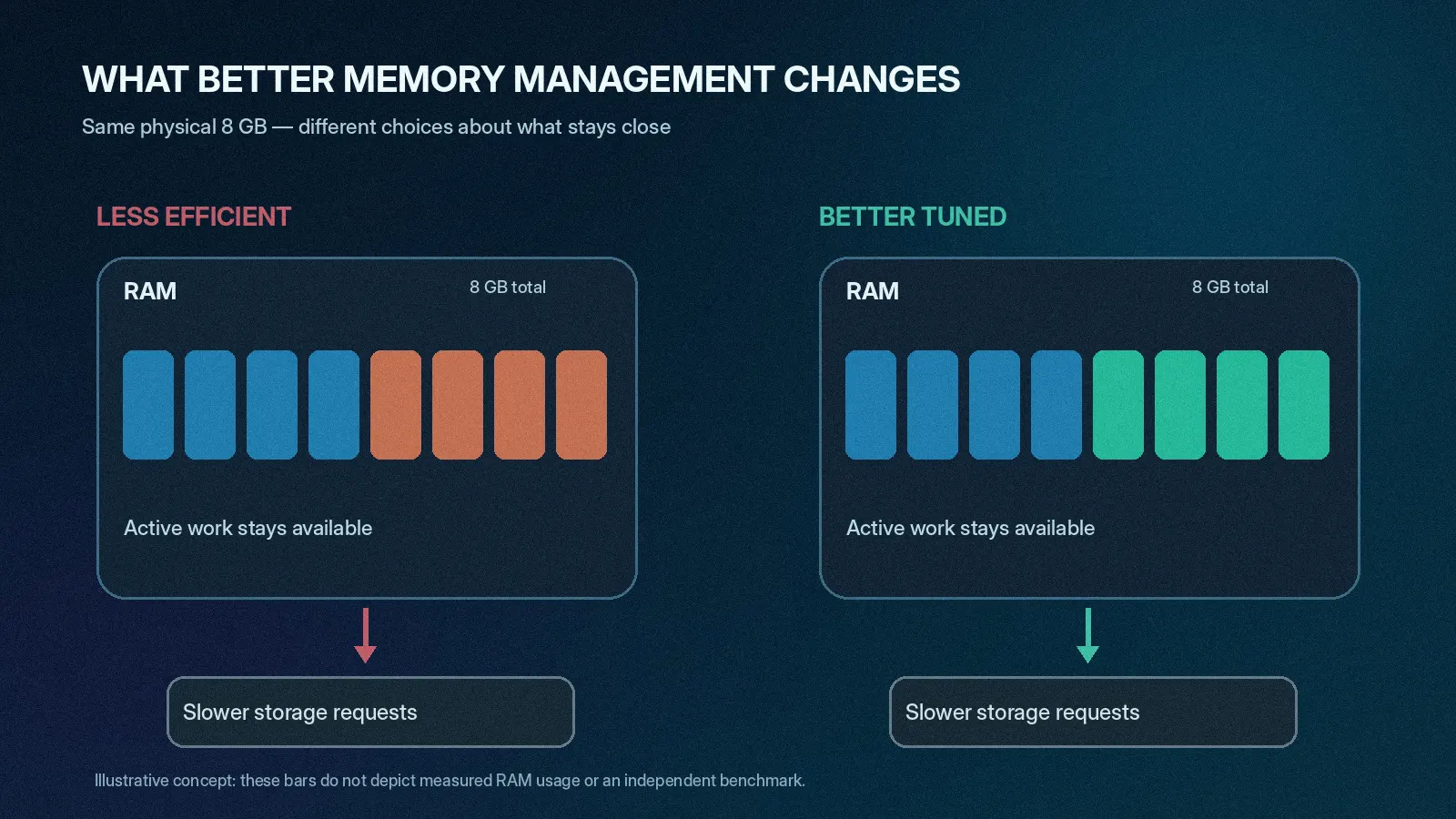
This distinction explains why a computer can feel faster without its processor becoming any more powerful. Avoiding work—especially expensive transfers to storage—is often more valuable than accelerating the work after it has already been scheduled.
Where the 40% number actually comes from
The most important paragraph of Microsoft’s announcement is buried in the testing details.
In an internal lab test, Microsoft used an HP OmniBook 3 with 8 GB of RAM and a Snapdragon X Plus eight-core processor. The scenario opened 20 Microsoft Edge tabs, a 4K video, large Word, Excel and PowerPoint files, Outlook and File Explorer in sequence while keeping the workload open. The company compared builds from earlier and later in 2026 on the same device.
Under those conditions, the newer system completed the workflow up to 40% faster. Microsoft also reported up to 20% quicker responsiveness for certain common interactions such as Start, Search, Settings and File Explorer, based on separate measurements.
These are not interchangeable claims. The 40% refers to completion time in a demanding, specific multitasking sequence. The 20% figure refers to measured response times of selected interactions. Neither means a game gets 40% more frames, a processor becomes 40% more powerful or every laptop boots 40% sooner.
The company’s methodology matters. The test was performed internally, the configuration was specific, and results can change with processors, installed apps, background tasks, storage speed and update timing. A real-world independent test across varied machines is necessary before generalizing the result.
Still, the underlying mechanism is credible. If the older system repeatedly pushes data out of RAM and the newer system keeps it available, the time saved can be substantial in exactly the kind of task that used to cause reloading and delays.
The less glamorous improvements may be the most useful
Microsoft describes several changes beyond compression.
Widgets load on demand. On systems with 8 GB or less, the Widgets experience now loads when opened rather than retaining the same background footprint all the time. Microsoft estimates roughly 200 MB less committed memory while it is closed.
Inactive browser tabs sleep sooner. The default interval in Edge drops from two hours to 15 minutes, reducing memory pressure when many tabs are open but only a few are active. Sleeping tabs may take longer to wake, a trade-off worth understanding.
Apps use less memory in particular workloads. Microsoft reports up to 900 MB less growth in committed memory during its multitasking tests across Windows, Edge and Microsoft 365 applications. It attributes around 360 MB of savings to changes across Office apps. These are measured figures for selected tests, not a universal promise to recover that exact amount on every PC.
Foreground actions get priority. Windows can briefly back off background tasks while a user opens a menu, performs a search or launches an app. This does not increase the laptop’s CPU speed; it changes when less urgent work gets its turn.
Taken together, the changes reflect a useful design philosophy: make the computer do less unnecessary work, and prioritize the work the person can actually see.
How to check whether your laptop received the improvements
Microsoft’s documented target is Windows 11 version 26H2, build 26300.9818 or later, with Edge, Microsoft 365 and Teams updated when relevant. Rollout can vary by device and region.
To check your version, press Windows + R, type winver, and confirm the version and build. You can also go to Settings → Windows Update, check for updates and follow the normal restart prompts. Avoid downloading unofficial “performance patch” executables or forcing an incompatible build based on an online tip.
If your PC is already running the relevant update, you can perform a simple personal comparison, but do not mistake it for a scientific benchmark. Open the apps you normally use, switch between them, and notice whether tabs or documents reload as often. The goal is practical responsiveness, not a perfect-looking memory percentage.
Task Manager can help. Open it with Ctrl + Shift + Esc, select Performance → Memory, and examine RAM use while you reproduce the slowdown. Pay attention to whether the system becomes unresponsive during app switching and whether storage activity spikes. A snapshot alone rarely identifies the cause.
Before doing anything drastic, try three low-risk checks: restart after updates finish, remove unnecessary apps from startup, and keep enough free storage space for normal operation. Beware programs claiming to “clean RAM” by forcing Windows to empty useful caches; that can make reopening applications slower, not faster.
Why 16 GB still matters
Software can manage a limited resource intelligently. It cannot eliminate the limit.
Imagine editing a large photograph, running a game, streaming video and keeping dozens of browser tabs active. Each application has data that genuinely needs space. Better caching and compression help, but eventually the amount of work exceeds the comfortable capacity of an 8 GB machine.
Microsoft itself states that demanding work such as advanced video editing, 3D modeling and large data processing benefits from 16 GB or more. This is not an argument that everyone should immediately replace a functional laptop. It is a reminder that software improvements and physical capacity solve different problems.
There is another complication: many laptops have RAM soldered to the motherboard, so upgrading later may not be possible. If you are buying a new computer for several years of use, consider your likely workloads, upgrade options and price difference rather than deciding entirely from a headline saying 8 GB is now enough.
And if your current machine has a slow hard drive rather than an SSD, its storage bottleneck may dominate the experience whenever Windows needs to retrieve data. A memory-management update cannot give a mechanical drive SSD-like latency.
What this Windows update really teaches us
A PC’s responsiveness is not simply the sum of its processor benchmark and RAM capacity. The operating system is making thousands of small scheduling and memory decisions that determine whether the next click feels immediate or slow.
Microsoft’s 40% figure deserves the qualification that accompanies it: a company-run lab test of a specified 8 GB multitasking workload. The broader advance is less flashy but more durable. Compression, caching, on-demand components and prioritization can make a modest computer feel significantly better without asking its owner to buy new hardware.
Sometimes the best performance upgrade is not making a computer work harder. It is teaching it which work can wait—and which information should stay within reach.
Sources and research notes
- Microsoft Windows Experience Blog — Raising the bar for 8 GB Windows 11 PCs, November 3, 2026. Primary announcement, build requirements, methodology, lab results and limitations.
- The Verge — Windows 11 memory improvements on 8 GB PCs, November 2026. Independent reporting on Microsoft’s claims; not an independent replication of the full lab test.
- Windows Latest — Windows 11 memory-management update, November 3, 2026. Additional observations from one 8 GB laptop, not representative of all PCs.
Editorial note: Wondecode has not performed its own comparative benchmark. The cover and memory-management illustration are original conceptual artwork, not screenshots of the official Microsoft test.