
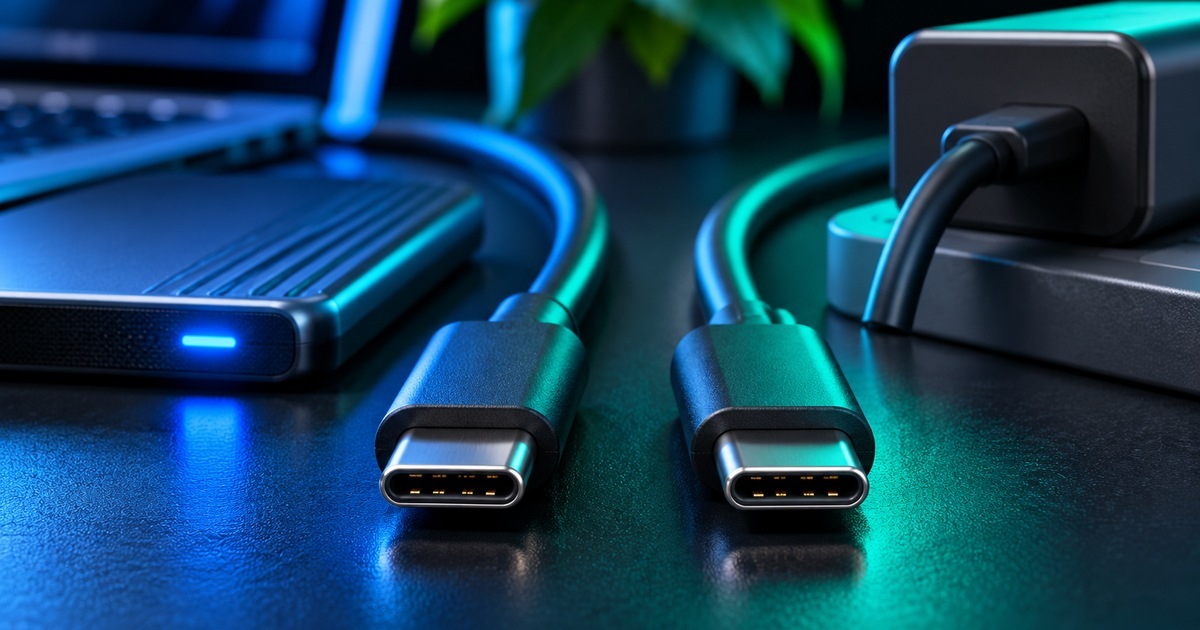
A cable is one of the least interesting things on your desk—until it suddenly becomes the reason a backup takes forever.
You plug a portable SSD into a laptop with a USB-C cable. The connector fits perfectly. The drive appears. But transferring a folder of videos crawls along as though it were an old flash drive. You try another USB-C cable that looks almost identical, and suddenly the same task is dramatically faster.
The surprise is not that one cable is defective. Both cables might be working exactly as designed. USB-C tells you the shape of the connector, not how quickly data travels through the cable or how much power it can safely carry.
The theoretical gulf can be enormous. USB 2.0 supports up to 480 megabits per second, while a USB 40Gbps connection has a signaling rate of up to 40 gigabits per second—more than 80 times as much. That comparison is between interface specifications, not a promise that a real file copy will finish 80 times faster. The drive, port, software and overhead all matter. But it explains why the wrong cable can become a bottleneck.
Here is how to decode what you already own, and how to buy your next cable without guessing.
The trick: USB-C is a shape, not a performance guarantee
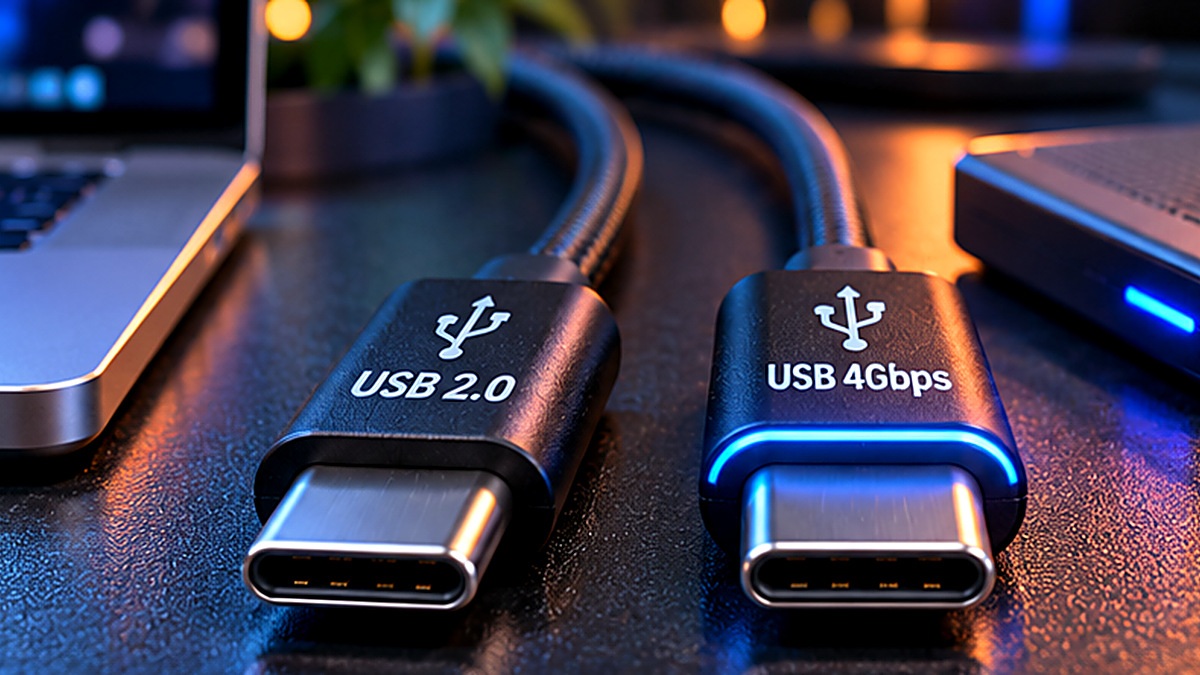
Think of USB-C as a doorway. Two doorways can have the same dimensions yet lead to very different rooms. Under that familiar reversible plug, cables can implement different wiring and signaling capabilities.
A basic USB 2.0 Type-C cable handles ordinary USB 2.0 data, making it perfectly useful for charging a phone or connecting modest peripherals. It cannot physically carry the higher-speed signaling of USB 3.2 or USB4. USB-IF’s packaging guidance says exactly that. Even if both devices support USB4, a USB 2.0-only cable limits the link to USB 2.0 performance.
By contrast, a suitably rated USB-C cable may support much faster data transfers, higher-power charging or certain display connections. Those features do not automatically come as a bundle.
Apple provides a particularly clear real-world example: its USB-C charging cable supports charging but is limited to USB 2.0 data at 480 Mb/s and does not support video, whereas its Thunderbolt 3 cable can support up to 40 Gb/s over a compatible Thunderbolt connection and also carry display signals. They share a familiar connector but have very different jobs. Apple’s own cable comparison makes the distinction explicit.
The number that matters for copying files is in Gb/s
If you regularly move photographs, footage, large game files or backups to an external SSD, search for an explicit data rating rather than a phrase such as “fast USB-C cable.”
| Data marking or capability | Theoretical signaling rate | What it tells you |
|---|---|---|
| USB 2.0 / Hi-Speed USB | 480 Mb/s | Fine for basic data; potentially a major bottleneck for a fast SSD |
| USB 5Gbps | 5 Gb/s | Faster data link if both devices support it |
| USB 10Gbps | 10 Gb/s | Higher-performance storage and accessories |
| USB 20Gbps | 20 Gb/s | Faster-compatible systems, ports and devices required |
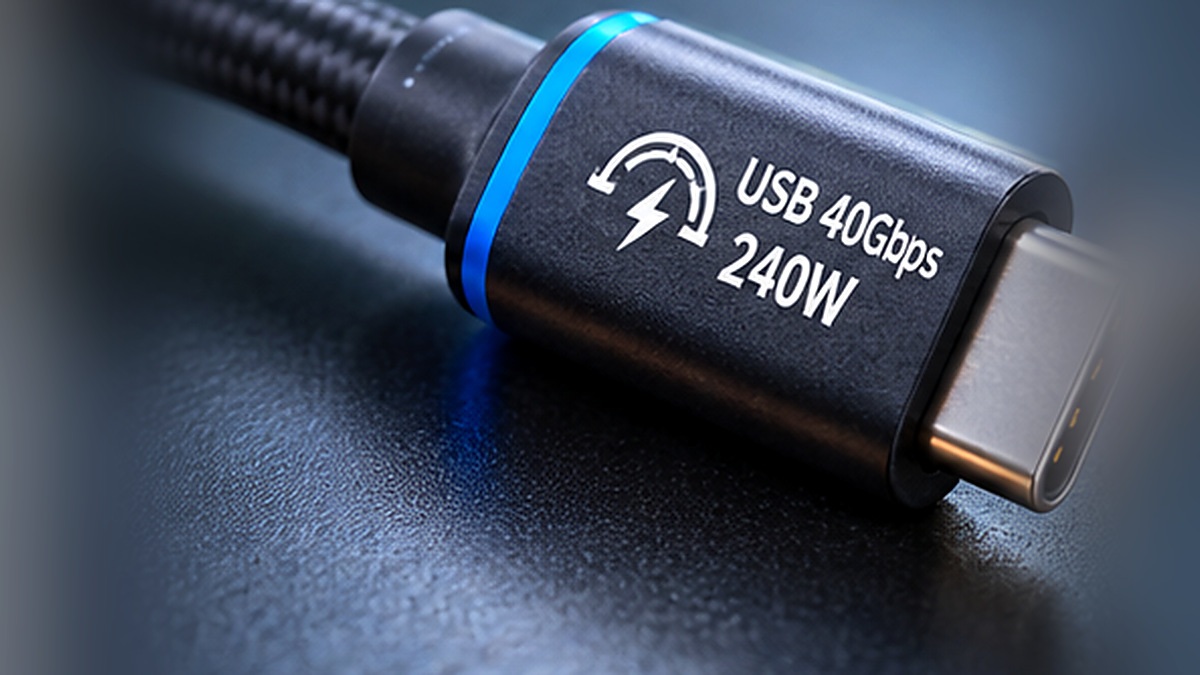
| USB 40Gbps | 40 Gb/s | High-speed USB4/Thunderbolt-class connectivity when the whole chain supports it |
These are signaling rates, not guaranteed file-copy speeds. In practice, a 40Gbps cable connected to a slow flash drive is not a magic upgrade. And a 40Gbps-capable drive connected to a 5Gbps port will not reach 40Gbps just because its cable can handle that rate.
A useful rule: the slowest compatible link in the chain determines the ceiling. Check the host port, the external device and the cable, not just one component. Protocol overhead, storage performance and heat may lower the result further.
USB-IF recommends consumer-facing speed descriptions such as “USB 5Gbps,” “USB 10Gbps,” “USB 20Gbps,” “USB 40Gbps” and “USB 80Gbps,” depending on the product. The numbers are much more useful than a vague product listing that says only “USB 3 cable.” See the USB-IF naming guidance.
Why a 240W cable might still be slow at data
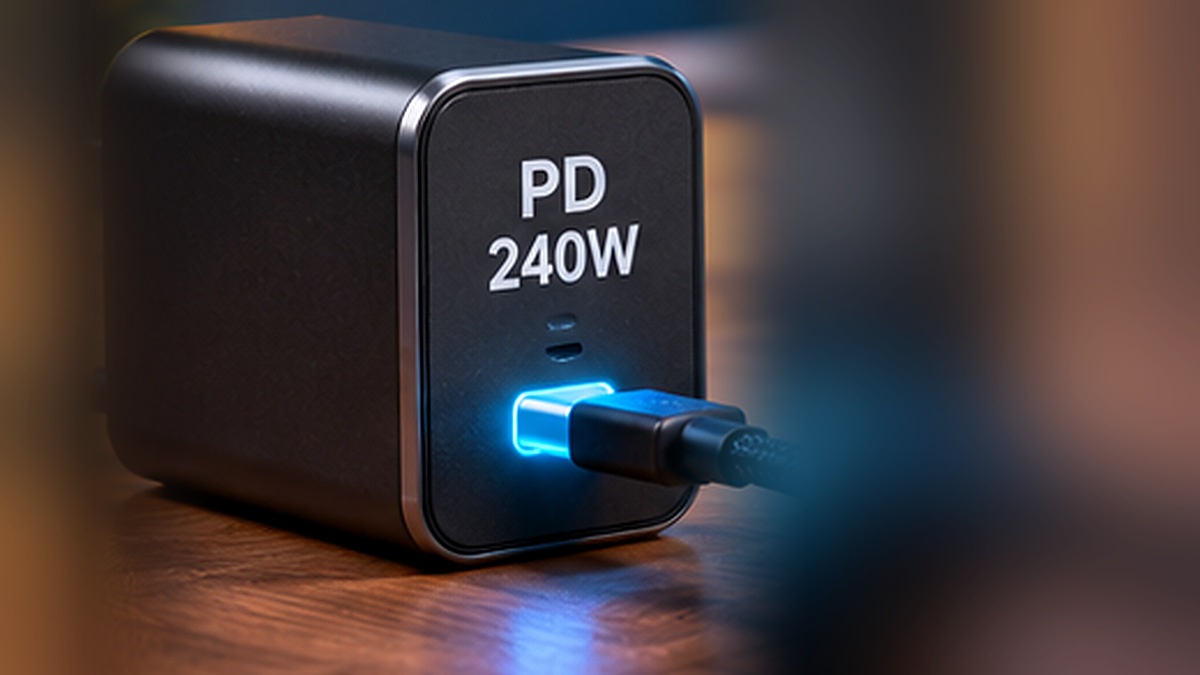
Charging is a separate question. USB-C cables are also marketed by power capacity, typically with 60W or 240W ratings in USB-IF’s current certified-cable labeling program.
That number answers: How much USB Power Delivery power is the cable designed to carry under the relevant conditions? It does not answer: How fast will my files copy?
A cable advertised as 240W can still be intended primarily for charging and ordinary USB 2.0 data. Conversely, a high-speed data cable might be rated for 60W power. A high number in one column does not imply a high number in the other.
There is another important limitation: a 240W-rated cable does not force your laptop or phone to charge at 240W. The charger must supply an appropriate USB Power Delivery profile, the device must accept it, and the connection must negotiate safely. The actual power delivered can be much lower.
The USB-IF cable certification requirements say certified USB-C-to-USB-C cables must show power capability, and higher-speed certified cables also require appropriate data-rate markings. USB 2.0-only USB-C cables are an exception to that additional data-rate-marking requirement. A seller may print impressive claims on an uncertified cable, however, so a label is a claim to verify—not an infallible test result.
Need a monitor? Check a third capability
One more trap: a cable can charge a laptop and transfer files while still failing to carry a picture to a USB-C monitor.
Video over USB-C may use DisplayPort Alternate Mode, USB4 or Thunderbolt capabilities, depending on the system. Successful video requires the correct features at both ends and through the cable or dock. USB-C alone never guarantees display output.
This is why a USB-C-to-USB-C cable bundled with a charger should not automatically become your preferred connection to a USB-C monitor. Find the laptop and monitor specifications, then select a cable explicitly rated for the required connection. If a dock or adapter sits between them, it becomes another compatibility checkpoint.
Avoid diagnosing a black screen from connector shape alone. It could be the computer port, the display’s supported inputs, the cable or the adapter—not necessarily a bad monitor.
Four checks before buying a replacement cable
Here is the buying checklist I would actually use:
1. Name the main job. For a bedside phone charger, length, build quality and appropriate power support matter more than 40Gbps data. For a fast portable SSD, the data rating matters much more. For a USB-C monitor, display compatibility comes first.
2. Find the actual speed specification. Look for a clear rating in Mb/s or Gb/s in the manufacturer documentation or product listing. If the description says only “Type-C fast charging,” do not assume it is suitable for rapid data transfer.
3. Match the power requirement. Check the charging device and the charger. Choose a properly rated, reputable cable that supports the connection you need. A higher wattage rating is capacity, not a promise of faster charging.
4. Verify the maker and certification claim. Favor clear model numbers, reputable documentation and, when possible, certification that can be checked through the USB-IF certified product database. Certified products are not the only functional cables, but meaningful evidence is more valuable than a listing’s string of buzzwords.
Price and thickness alone are poor shortcuts. A thick cable can be slow; a compact one can support high-speed data. A lightning-bolt symbol often identifies a Thunderbolt product, but always read the model’s supported generations and capabilities rather than assuming every symbol means the same performance.
How to test the cables already in your drawer
You do not need to cut open a cable or buy laboratory equipment. You can perform a useful comparison with a laptop and external storage you already trust.
Start with a drive and ports whose specifications you know. Copy a single large local file, such as a several-gigabyte video, from the same drive to the same destination. Observe the sustained transfer speed. Then repeat with a different cable, keeping the device, port, destination and file unchanged.
If one cable repeatedly produces USB 2.0-like transfer rates while another is much faster, you have evidence that the cable or its compatibility with the connection is limiting performance. But this is not a certification test, nor does one good result prove a specific cable standard. The disk could saturate first; caching can make early results misleading; and some host ports offer different capabilities.
You can also try the reverse transfer direction or multiple large files to see whether the pattern is consistent. Avoid using the speed of a cloud download as your cable test: your internet connection would introduce another bottleneck.
For charging, a phone’s “fast charging” notification is not enough to prove a cable’s data speed. It describes charging behavior, not the wiring required for a fast storage connection.
When the fastest cable is unnecessary
There is a temptation to buy the most expensive “future-proof” cable on the shelf. Sometimes that makes sense for a demanding setup, but often it does not.
A short, reliable cable for charging an ordinary device can be exactly right without exotic data specifications. If your computer’s USB-C port supports only slower transfer rates, buying a 40Gbps cable will not upgrade the port. And a cable rated for 240W does not make a small phone battery request 240W.
The practical goal is not to own the fastest cable in every drawer. It is to know which cable is which. A tiny reusable label—“charging,” “10Gbps SSD,” “monitor/dock”—may save you more frustration than purchasing another mystery cable in a bundle.
The takeaway
USB-C solved one annoying problem: the plug finally fits either way. It did not solve the problem of knowing what the plug can do.
When a transfer stalls, a laptop refuses to display video, or a supposedly premium cable underperforms, start with three independent questions: How fast is its data connection? How much power can it carry? Does it support the video connection I need?
Those answers belong in the specifications, not in the shape of the connector. Two identical-looking cables may tell very different stories once you know where to look.
Sources and further reading
- USB-IF — Cables and Connectors. Official cable certification and markings; data and power capabilities.
- USB-IF — USB Type-C Language, Product and Packaging Guidelines. Official 480 Mb/s USB 2.0 limitation and consumer-facing data speed descriptions.
- USB-IF — Certified Product Search. Check certification claims by manufacturer and model where listed.
- Apple Support — About the Apple Thunderbolt 3 (USB-C) Cable. Concrete manufacturer comparison of USB-C charging and Thunderbolt data/video cables.
- USB-IF — USB-C Cable Power Rating Logo Usage Guidelines. Requirements and examples of certified cable labeling.
Editor’s note: All cable speed and power figures refer to the cited specifications or certified ratings, not independently benchmarked performance of any particular product.