
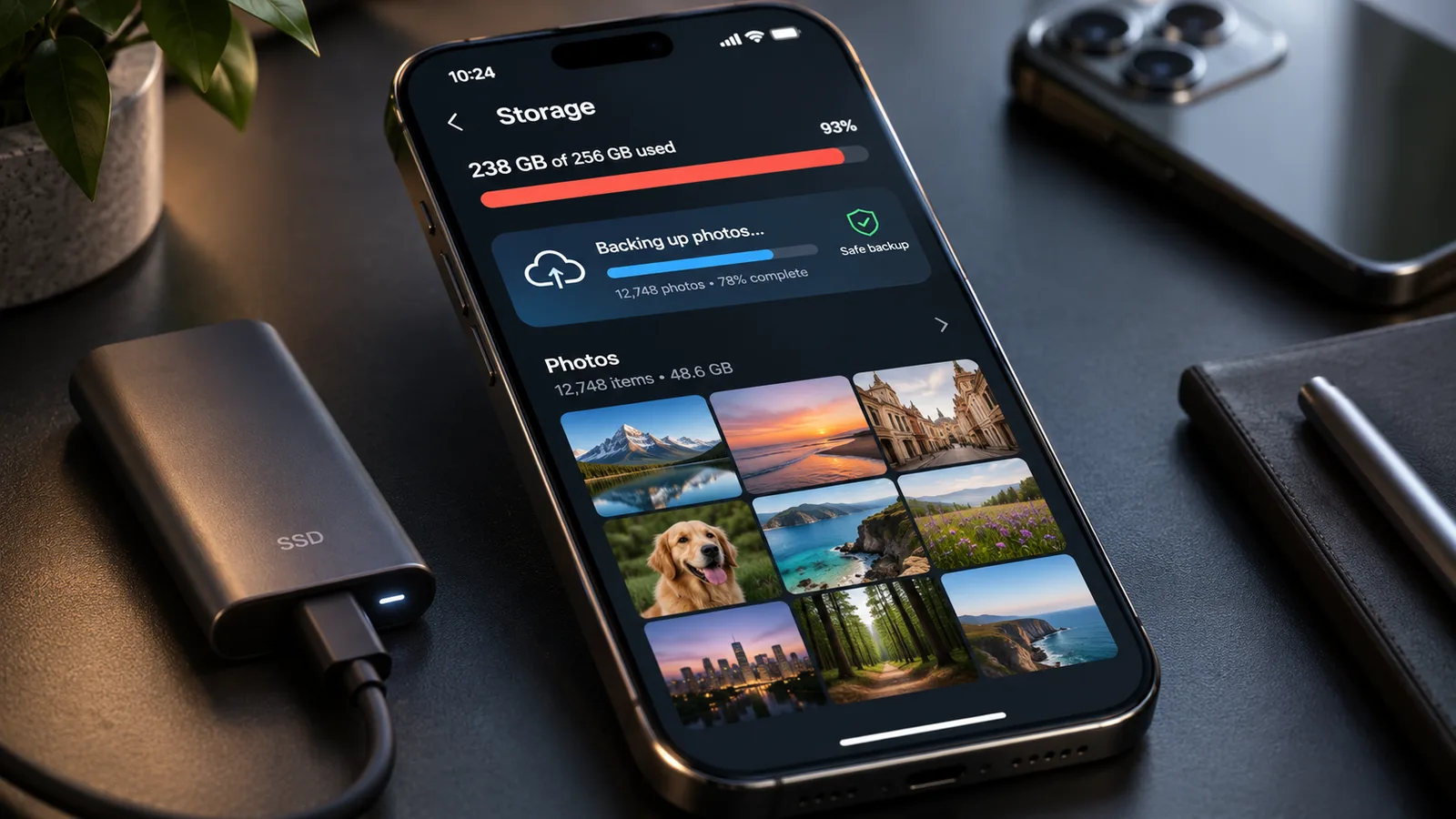
Your phone says its storage is almost full. You try to take a video, download a document, or install an update—and get the same warning again. The obvious solution seems to be deleting pictures. But that is often the worst place to start.
Downloaded movies, forgotten files, messaging attachments, unused apps, and temporary data can occupy substantial space. Some can be removed without touching a single family photo. Others demand care: a photo library that looks like a backup may actually be synchronized across multiple devices, so deleting a picture in one place can delete it elsewhere.
Here is how to find the real storage problem and make room safely on Android or iPhone. The order matters: start with reversible changes, verify backups before touching images, and check your free space as you go.
First, understand what “freeing up space” actually means
Three actions that sound similar are not the same:
- Removing a downloaded copy generally removes an offline file from one device while leaving an online version available, provided the app explicitly supports that behavior.
- Clearing an app’s cache removes temporary data that can usually be recreated. It is not the same as erasing the app’s stored information.
- Deleting a synchronized item can remove it across devices and from a connected cloud library. This is particularly important for photos.
Before you begin: If a file or photo is irreplaceable, make a separate, verified backup. Do not assume that seeing its thumbnail in a cloud-enabled app means the original has been uploaded. If you cannot confirm a backup, leave your photos alone and use the other steps first.
1. Find out what is actually using your storage
Do not guess. Your phone can usually tell you which categories and apps consume the most space.
On Android:
- Open Settings and look for Storage (the exact path varies by manufacturer).
- Review the categories, such as apps, images, videos, audio, downloads, and system files.
- Open the details for a large app if your phone provides them. Check whether its size comes from the app itself, downloads, or user data.
On iPhone:
- Go to Settings → General → iPhone Storage.
- Review the storage bar, Apple’s recommendations, and the app list.
- Tap an app to compare its application size with the documents and data it stores.
Apple’s iPhone storage guide explains the distinction between offloading an app and deleting it; Google’s Android storage guide explains the corresponding Android options.
What to do next: Start with the largest removable category. A messaging app using several gigabytes of videos may be a better target than hundreds of carefully selected family photographs.
2. Remove offline downloads you no longer need
Streaming apps often keep full videos, podcasts, music, or maps on your phone for offline use. These are particularly attractive cleanup targets because many can be downloaded again if you have an internet connection and the content remains available.
Check the Downloads or Offline section inside your video, music, podcast, reading, and map apps. Remove the items you have finished using from within the app whenever possible. This allows the service to update its download list properly.
Then review your phone’s ordinary download folder:
- Android: Open Files by Google or your manufacturer’s file manager and browse Downloads.
- iPhone: Open the Files app and check Browse → On My iPhone → Downloads, plus any other locations where you save files. Depending on how you downloaded an item, it may be elsewhere.
Look for old installers, duplicate PDFs, temporary ZIP archives, and videos you recognize. Open unfamiliar documents before deleting them. Files saved in a cloud-connected folder may synchronize changes, so distinguish Remove Download from Delete when your file service offers both.
Apple includes downloaded videos and files among the items to review in its official storage instructions. Google advises removing downloaded media through the app that created it where practical.
3. Clean large messaging attachments—not entire conversations
Group chats accumulate forwarded clips, photos, voice notes, and documents. The attachments may matter far less than the messages surrounding them.
In WhatsApp, open Settings → Storage and Data → Manage Storage (on some versions, the menu layout differs). Review the largest items or open a particular chat to inspect its media. WhatsApp’s official storage guide explains how to review attachments before removing them.
This is safer than blindly deleting chats, but it still requires judgment:
- Save important photos, voice recordings, or work documents elsewhere first.
- Check the selected items before confirming a deletion.
- Make sure any backup you depend on has finished; a chat backup is not a substitute for individually verifying irreplaceable files.
Other messaging apps may have similar per-conversation or media-storage controls. Use their built-in tools before choosing an option named Clear data, Reset, or Delete app in your phone’s settings.
4. On Android, clear cache—not app storage
A cache is a collection of temporary files an app keeps to make future actions quicker. Clearing it can recover space, though the files may be rebuilt as you use the app again.
For an app taking up unexpectedly large storage:
- Open Settings → Apps and select the app. The menu names vary by device.
- Open Storage or Storage & cache.
- Choose Clear cache if available.
- Reopen the app if necessary. Its next launch might be slightly slower while it recreates temporary files.
Do not confuse “Clear cache” with “Clear storage” or “Clear data.” Google states that clearing an app’s storage permanently deletes its app data; depending on the app, that can erase locally stored settings, downloads, or other important information. Google’s Android documentation makes this distinction explicit.
For a broader review, Files by Google can identify junk files, duplicate files, screenshots, and unused apps. Start by checking its suggestions rather than approving everything at once. Google’s Files help lists the available cleanup tools. Note that deleting items from its Junk files card can be permanent rather than sending them to a trash folder.
If you see an unfamiliar “phone booster” app promising spectacular results, you do not need to install it to perform these basic cleanup tasks.
5. On iPhone, offload unused apps instead of deleting their data
iPhone has a particularly useful option for apps you rarely open: Offload App.
Go to Settings → General → iPhone Storage, select an unused app, and tap Offload App if the option is offered. According to Apple Support, offloading removes the app itself while preserving its documents and data. Its icon remains available so you can reinstall it later.
This is not the same as Delete App, which removes the app and its associated data. There is also an important limitation: if the app’s documents and data account for most of the storage, offloading may reclaim relatively little. In that case, inspect downloads inside the app, or ensure its information is properly backed up before considering deletion.
You can also turn on Offload Unused Apps for automatic management; Apple’s iPhone storage instructions describe where to find that option. Whether you use automatic offloading should depend on how often you need applications when offline.
Unlike Android, iPhone does not provide a single universal Clear cache button for every third-party app. Avoid guides that insist you can erase all iPhone caches with one secret switch.
6. Make your photo library take less room—with a verified backup
This is the step that can free substantial storage and create the biggest risk if handled carelessly.
Android: use Google Photos’ device-only cleanup
If you use Google Photos, first open the app and confirm that the status says Backup complete. Verify that you are signed into the right Google Account, and check an important photo on photos.google.com before removing anything. For a particularly important video, verify that it plays from the backed-up library, not just from your device.
Once you have confirmed your backup:
- Open Google Photos.
- Tap your profile image or initial.
- Choose Free up space on this device.
- Review the space estimate and confirm only if you understand that local copies will be removed.
Google says this tool removes on-device photos and videos that have been backed up. You can still view the cloud copies through Google Photos, but items removed from the device may not appear in its ordinary offline gallery and may require an internet connection. See Google’s device-cleanup instructions.
Do not substitute the ordinary Delete or Trash button in Google Photos. Deleting a photo from the Google Photos library can also delete its backed-up copy and synced copies on devices. If backup is incomplete, stop and finish it first.
iPhone: optimize iCloud Photos rather than deleting pictures
If you use iCloud Photos, Apple provides Optimize iPhone Storage. With this feature, full-resolution originals can remain in iCloud while the iPhone keeps smaller local versions when needed.
Go to Settings → [your name] → iCloud → Photos, check that Sync this iPhone is enabled, then locate and enable Optimize iPhone Storage. Apple notes that the precise arrangement of the storage options can vary with the iOS version; see its current photo-storage guide. Make sure you have enough iCloud space for your library, and allow time for synchronization and optimization to complete. This does not necessarily free space instantly.
Critical warning: iCloud Photos is a synchronized photo library, not a separate archive immune to deletion. If you delete a photograph from the Photos app while iCloud Photos is enabled, Apple says it is also deleted from iCloud and your other devices using that library. Deleted items usually remain in Recently Deleted for 30 days, but permanently deleting them removes the recovery option. Read Apple’s deletion warning.
If you do not use cloud photo storage, another option is to copy photos to a computer or external drive, open several copies to verify them, and only then decide whether to remove local originals. Keep more than one copy of irreplaceable files where possible.
7. Review duplicates and forgotten files carefully
After the larger changes, look for redundant files you no longer need.
On Android: Files by Google can flag duplicates. Google recommends keeping the file marked Original. Compare names, sizes, and contents when two files seem identical; a resized picture or edited document may be worth keeping even if it looks similar. Use Google’s duplicate-file guide.
On iPhone: The Photos app may offer a Duplicates collection for photos and videos, and Apple explains that merging duplicates can save space. The availability of this feature and the location of the control depend on your iOS version. Review the matches before merging. Apple describes the option in its photo-storage guidance.
Also inspect old recordings, exported videos, and downloads—but do not delete a file merely because you do not recognize its name. If it belongs to an app or project, find out what it does first.
Finally, look at Trash or Recently Deleted if storage still looks unchanged. Some apps retain removed items temporarily, and storage may not be recovered until their retention period ends or the trash is emptied. For example, Files by Google commonly retains trashed files for 30 days. Only empty trash after verifying that nothing in it is needed.
What about “System Data,” “Other,” or storage that will not shrink?
These categories are frustrating because they sound like hidden files waiting to be erased. In reality, they can include operating-system data, caches, logs, and material managed by apps or the device itself. Some of that space is necessary; some changes dynamically as the device works.
There is no responsible one-button promise to reclaim it all. Start by reviewing the largest apps, offline downloads, and safe built-in recommendations. If the number looks abnormal even after that, update the phone when you have enough space and check the manufacturer’s official support guidance for your particular model. Do not follow random instructions to delete unidentified system folders.
A related distinction: phone storage is not cloud storage. Freeing 2 GB on your phone does not necessarily make 2 GB available in iCloud or Google storage, and deleting cloud items to free cloud space can affect synchronized devices.
A five-minute plan you can use today
If you want to begin without sorting your entire photo library, follow this order:
- Check Storage in Settings and identify your largest category.
- Remove one finished offline download, such as a film or podcast episode.
- Inspect WhatsApp or another messaging app for one large, disposable attachment.
- On Android, clear the cache of an unusually large app; on iPhone, offload an app you rarely use.
- Check your available space again. Only move to photo-library cleanup after confirming the backup and understanding sync behavior.
You may recover a useful amount of space without deleting any photograph at all. The exact result depends on what is stored on your device; no fixed number of gigabytes is guaranteed.
Frequently asked questions
Will clearing cache delete my photos?
Clearing an Android app’s cache ordinarily removes temporary app files, not the photo library. But Clear storage / Clear data is different and can erase locally stored app information. Check the button before tapping it.
Does “Optimize iPhone Storage” reduce image quality?
Apple keeps full-resolution originals in iCloud and may retain smaller space-saving copies on your iPhone. You can still access the originals when they are needed, provided synchronization is complete and they are accessible from iCloud.
Will I need internet access after using “Free up space” in Google Photos?
For photos whose local copies were removed, yes: viewing or downloading the cloud original generally requires connectivity. Before traveling offline, keep or download the specific items you will need.
Do I need a paid cleaning app?
Not for the steps in this guide. Android, iPhone, Files by Google, and major media apps provide built-in ways to inspect and remove storage-consuming items. Be cautious of apps that exaggerate the benefits of “boosting” performance or ask for unnecessary access to private files.
The takeaway: The smartest cleanup starts with information, not deletion. Identify the largest storage users, remove replaceable downloads and temporary data first, and treat synchronized photographs with extra care. Free space is useful—but the files you cannot replace are worth much more.
Sources
- Google Android Help. Clear up space. Android storage, cache versus app data, downloads, and backed-up photos.
- Apple Support. How to check the storage on your iPhone and iPad. Storage breakdown, offloading, and deletion behavior.
- Apple iPhone User Guide. Manage storage on iPhone. Downloaded files, automatic offloading, and storage recommendations.
- Google Photos Help. Check your backup. Backup-completion and per-item verification.
- Google Photos Help. Free up space on your device. Android device-only removal of backed-up items.
- Apple Support. Manage your photo and video storage. iCloud Photos and Optimize iPhone Storage.
- Apple Support. Delete photos on your iPhone or iPad. Cloud synchronization and deletion consequences.
- Files by Google Help. How to use Files by Google and Delete duplicate files. Built-in cleanup and duplicate review.
- WhatsApp Help Center. How to free up storage on WhatsApp. Reviewing messaging media and large attachments.
- Files by Google Help. Move files to Trash and restore files from Trash. Trash retention and permanent deletions.